3 simple methods to test Google Analytics 4 implementation in an Android app
Test Google Analytics 4 setup in Android mobile apps. Learn GA4 debugging, Firebase Analytics debug methods, and Google Analytics mobile app validation with developer-free options.
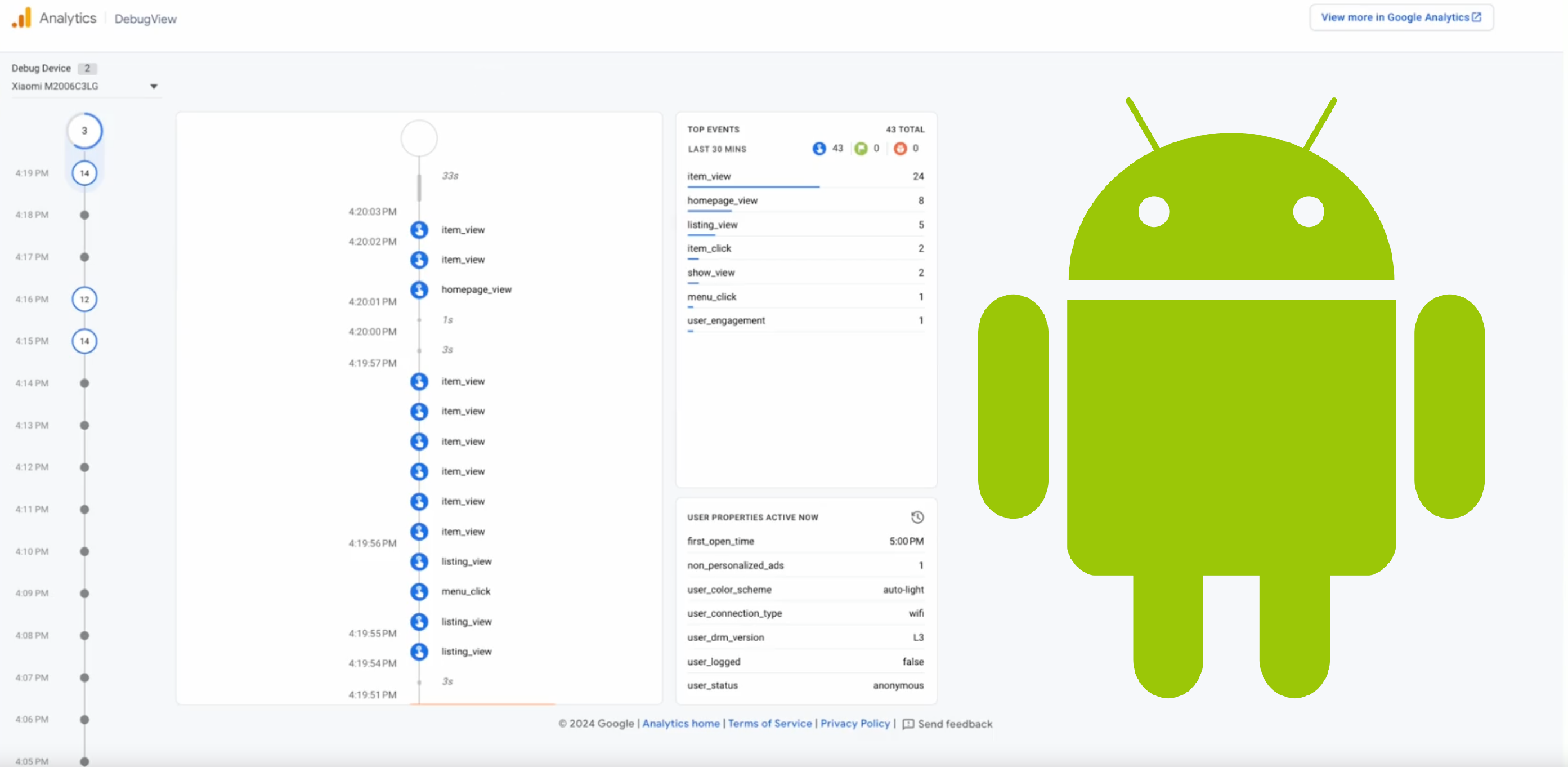
Ensuring accurate data collection and analysis with Google Analytics 4 (GA4) on Android apps is crucial. Through my experience implementing measurement in mobile apps, I've found a few simple ways to test GA4 measurement without needing a developer. This article explains three straightforward methods to test implemented GA4 on Android. By the end, you'll know how to check that your analytics implementation in your Android app is correct.
One thing before you start: be strict with mobile app developers. If an event is missing or a parameter is wrong, send it back. The specification exists for a reason.
What you need
- Android phone
- Cable to connect your phone to a PC/laptop
- Installed mobile app
- Implemented Firebase Analytics SDK
- Patience
Method #1: Google Analytics 4 (Firebase) DebugView
Video tutorial:
Prerequisites:
- Install ADB. It is needed to facilitate communication between your laptop and Android phone. ADB works on Windows and Mac as well.
- Find the app package name:
- From the Google Play URL (query parameter
id):https://play.google.com/store/apps/details?id=your.packagename - By downloading this app to your phone, that will scan all installed apps and you can easily find app package name
Steps:
- Open Google Analytics 4 DebugView
- Connect Android phone to your laptop with cable
- Open terminal or command line, run the following command and replace values between "<" and ">" to your app package name:
adb shell setprop debug.firebase.analytics.app <your.packagename>- Open Android mobile app and generate some hits - such as
screen_viewor try to tap on several elements. - Hurray! You can see hits in GA4 DebugView
A warning: DebugView sometimes skips events or shows them with a delay. I've seen implementations that looked fine in BigQuery but had gaps in debugView. Don't rely on debugView for final validation. BigQuery is the source of truth.
Method #2: Analytics Debugger for Apps by David Vallejo
Video tutorial:
Prerequisites:
- Install the desktop app: Analytics Debugger for Apps
- Enable developer mode on your phone
- Find the app package name:
- From the Google Play URL (query parameter
id):https://play.google.com/store/apps/details?id=your.packagename - By downloading this app to your phone, that will scan all installed apps and you can easily find app package name
Steps:
- Open Analytics Debugger for Apps
- Connect your Android phone to your laptop with cable
- Choose your phone
- Choose mobile app package name
- Open Android mobile app and generate some hits - such as
screen_viewor try to tap on several elements. - View hits in Analytics Debugger for Apps
Keep in mind: it only works with GA4 and a few other tools. If you need to check Adjust, other SDKs or network traffic from mobile app at the same time, it won't help. It also takes a while to set up each time.
Method #3: BigQuery
Video tutorial:
Prerequisites:
- Enable Export to BigQuery and allow export type "Streaming".
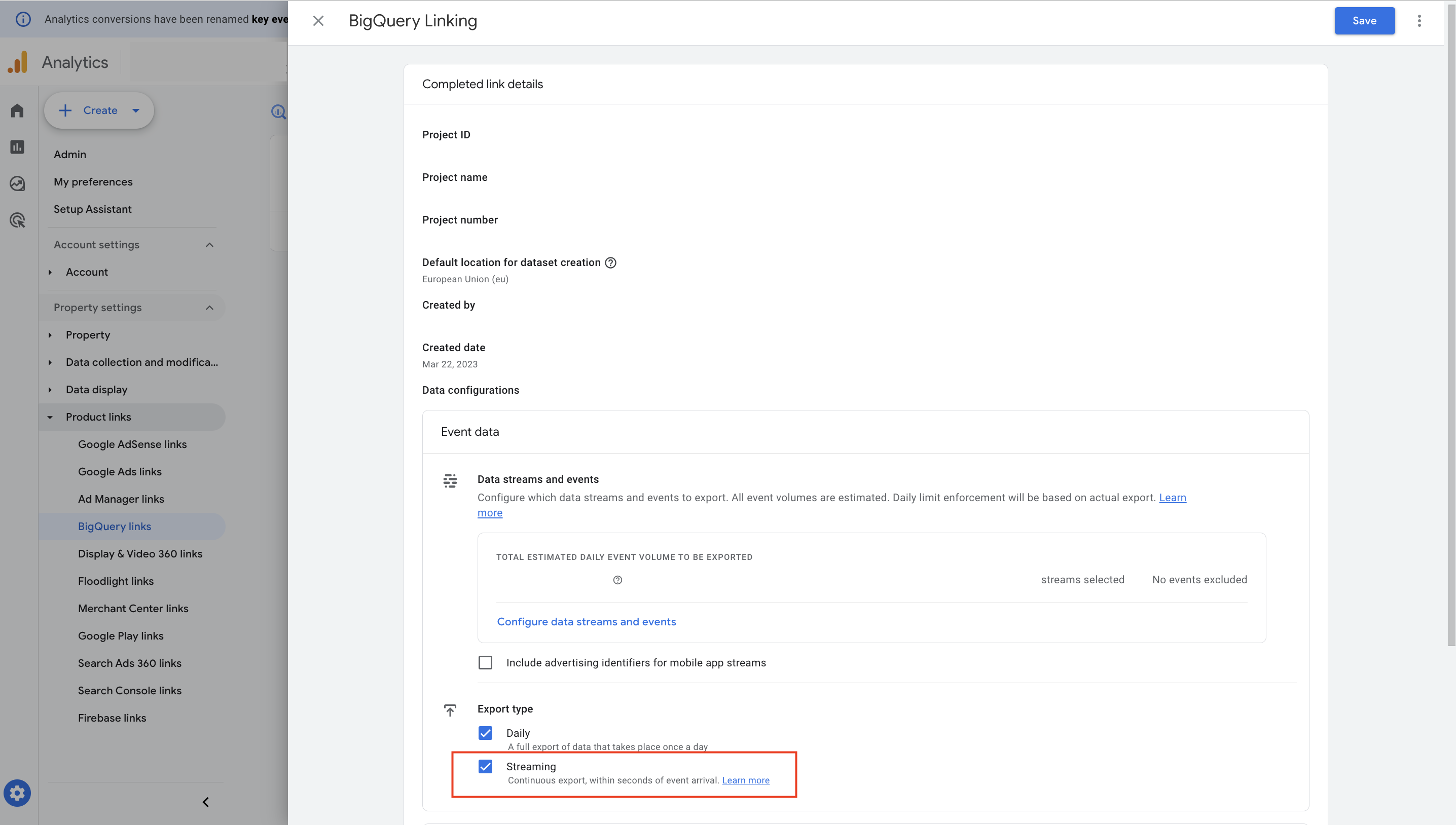
BigQuery Linking settings in Google Analytics 4 showing Streaming export type enabled
- Find your identifier. Basically there are two possible identifiers you can filter by:
- App Identifier: App Instance ID (generated by Firebase SDK for every app instance. When reinstall happens, new App Instance ID is assigned.)
- User Identifier: Client User ID (for example generated after login or registration)
Steps to find App Instance ID:
- Follow Method #2
- Copy payload from Analytics Debugger for Apps
- Find App Instance ID (key
app_instance_id) in copied payload.
App Instance ID is being collected to column user_pseudo_id in BigQuery export.
Steps:
- Copy payload
- Find your identifier
- Open Google Cloud Platform → Google BigQuery → Find your dataset → Streaming export (
_intradaytables) - Replace values and run simple SQL query:
  DATETIME(TIMESTAMP_MICROS(event_timestamp), "UTC") AS event_datetime, -- UTC
  COALESCE(device.operating_system || " - ", "") || COALESCE(device.operating_system_version, "") AS OS,
  COALESCE(app_info.id || " - ", "") || COALESCE(app_info.version, "") AS APP_INFO,
  user_pseudo_id,
  user_id,
  event_name,
  ARRAY(
  SELECT
    KEY || " = " || COALESCE(VALUE.string_value, CAST(VALUE.int_value AS STRING), CAST(VALUE.double_value AS STRING))
  FROM
    UNNEST(event_params)) AS event_params,
  ARRAY(
  SELECT
    KEY || " = " || COALESCE(VALUE.string_value, CAST(VALUE.int_value AS STRING), CAST(VALUE.double_value AS STRING))
  FROM
    UNNEST(user_properties)) AS user_params,
  device.mobile_brand_name,
  device.mobile_model_name,
  geo.region,
  geo.city,
FROM
  `<YOUR PROJECT NAME>.analytics_<YOUR DATASET ID>.events_intraday_*`
WHERE
  TRUE
  AND _TABLE_SUFFIX = FORMAT_DATE("%Y%m%d", CURRENT_DATE()) -- Today's date
  -- AND user_pseudo_id = ""
  -- AND user_id = ""
ORDER BY
event_datetime DESC- Wohoo, you can see all collected hits from your Android mobile app.
If you want to filter by another identifier, use this table to help identify the column:
| Identifier | BigQuery column |
|---|---|
| Client User ID | user_id |
| App Instance ID | user_pseudo_id |
Summary & personal experience
BigQuery is the only method I fully trust. DebugView is useful during development but unreliable, it misses events and sometimes shows them late. Analytics Debugger is somewhere in between, but it's limited to GA4 and a handful of tools.
Practical tip: use a dedicated test device. If you test on your personal phone, your own data ends up in the dataset.
My usual approach: use DebugView and Analytics Debugger to catch obvious issues quickly, then verify everything in BigQuery before you approve the implementation.