3 simple methods to test Google Analytics 4 implementation in an iOS app
This post details 3 simple methods to test Google Analytics 4 implementation on iOS, including two methods that do not require any developer assistance for setting up the testing environment.
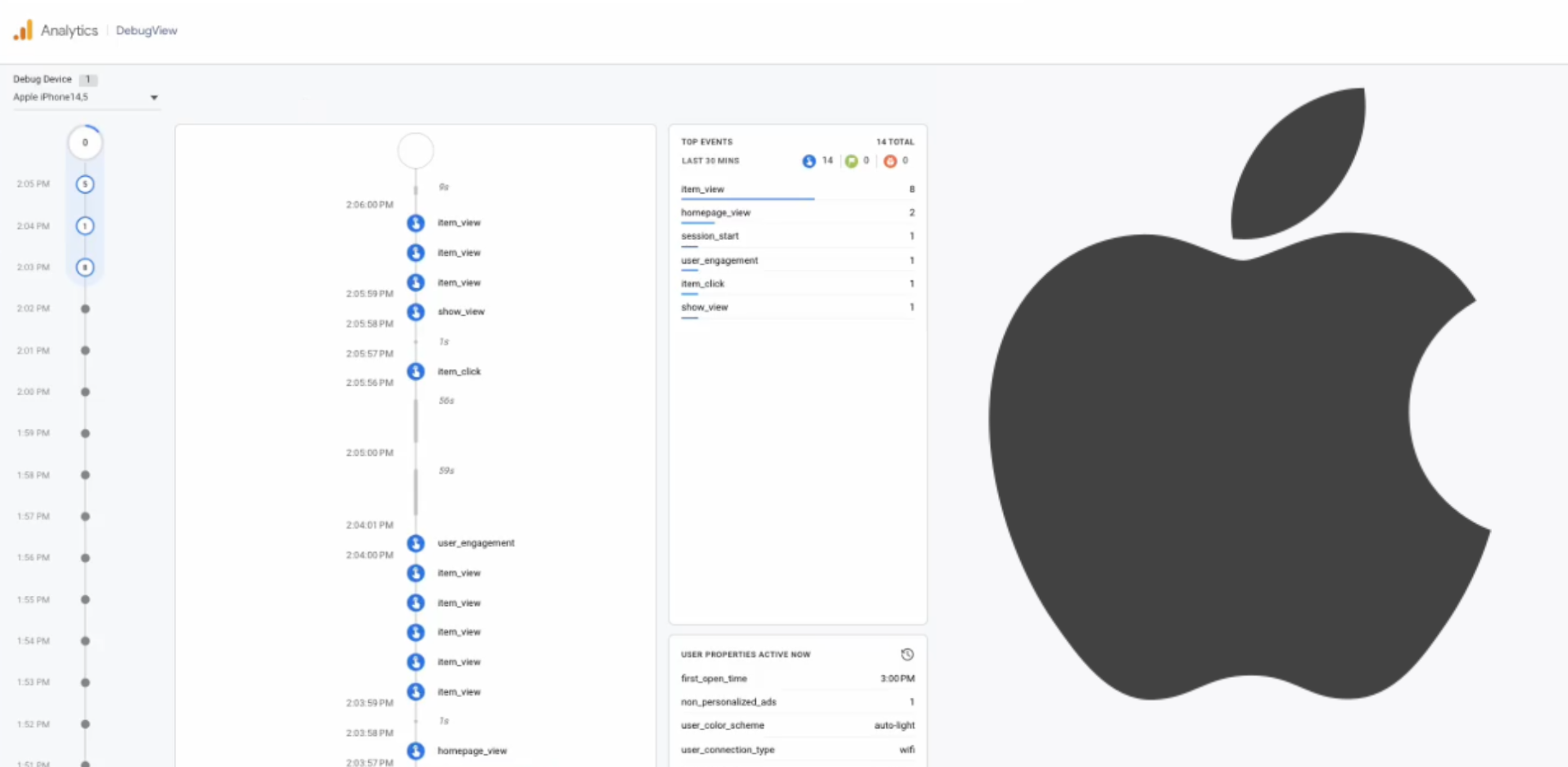
This post details 3 simple methods to test Google Analytics 4 implementation on iOS, including two methods that don't require any developer assistance for setting up the testing environment. By the end, you'll have the tools you need to confidently test iOS analytics implementation.
One thing before you start: be strict with mobile app developers. If an event is missing or a parameter is wrong, send it back. The specification exists for a reason.
What you need
- iOS phone
- Installed mobile app
- Implemented Firebase Analytics SDK
- Patience
Method #1: Google Analytics 4 (Firebase) DebugView
Prerequisites: Your developer needs to add the command line argument in Xcode, build and share the app version with you. I recommend including this argument in all future app versions so you can test the implementation in every future release. I also suggest adding this argument to non-production versions of the app, like testing or development versions.
Command line argument:
- FIRDebugEnabledStep-by-step guidance for your developer on how to setup the command line argument
Once the argument is implemented and the app published, you can download the app and follow the steps.
Steps:
- Open Google Analytics 4 DebugView
- Open iOS mobile app and generate some hits - such as screen_view or try to tap on several elements.
- Hurray! You can see hits in GA4 debugView
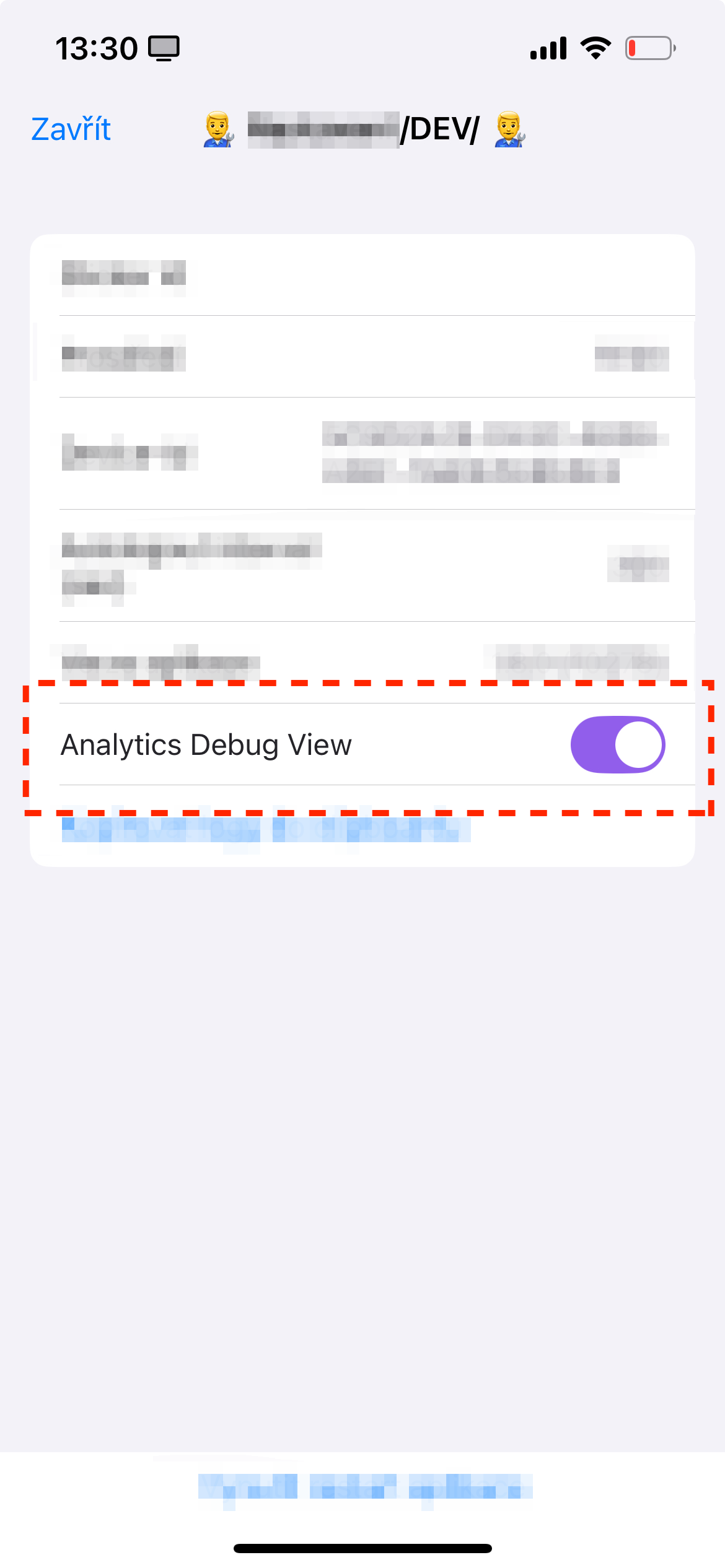
Screenshot from settings of mobile app
Tip: Some developers include a special menu in the development version of their app. You could ask them to add a switch that controls the argument values, allowing you to easily turn the debugView on or off as needed.
A warning: DebugView sometimes skips events or shows them with a delay. I've seen implementations that looked fine in BigQuery but had gaps in debugView. Don't rely on debugView for final validation. BigQuery is the source of truth.
Method #2: Analytics Debugger for Apps by David Vallejo
Prerequisites:
- Install the desktop app: Analytics Debugger for Apps
Steps:
- Turn off all VPNs on your computer and phone to prevent unexpected behaviour.
- Open Analytics Debugger for Apps
- Connect iPhone and computer to the same Wi-Fi
- Setup proxy in your iPhone. Follow certificate installation in HOW-TO VIDEO. Do not forget to trust certificate identity in Settings General Certificate Trust Settings
- Open iOS mobile app and generate some hits - such as screen_view or try to tap on several elements.
- View hits in Analytics Debugger for Apps
Find the whole installation process described in this video: youtube.com/watch?v=WWBb1Td2Zqo
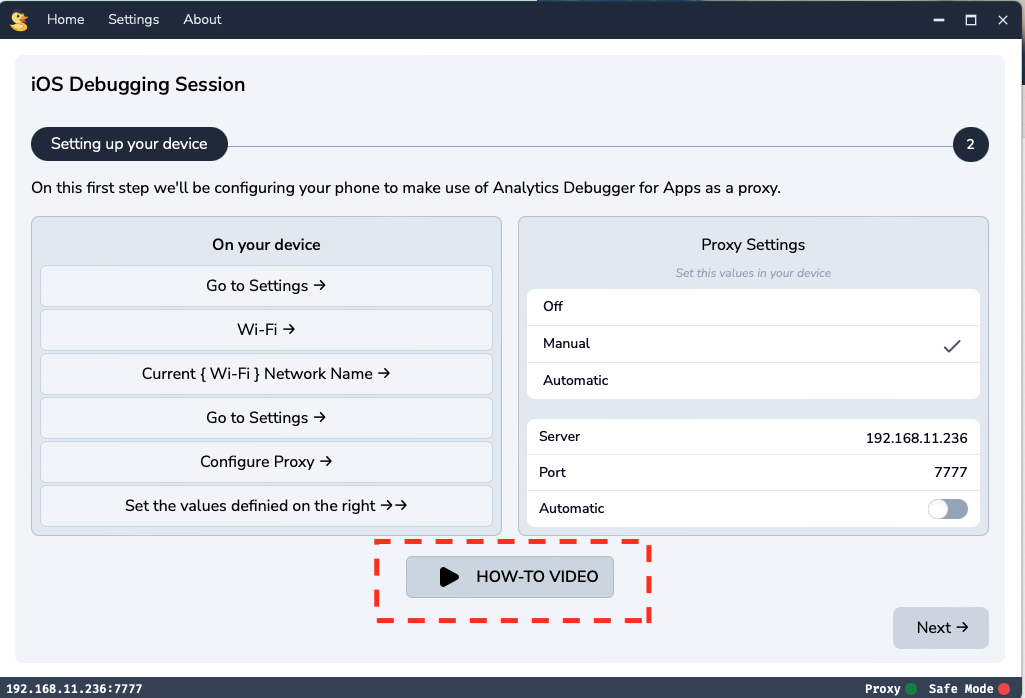
Analytics Debugger for Apps screenshot
Keep in mind: it only works with GA4 and a few other tools. If you need to check Adjust, other SDKs or network traffic from mobile app at the same time, it won't help. It also takes a while to set up each time.
Method #3: BigQuery
Prerequisites:
- Enable Export to BigQuery and allow export type Streaming.
- Find your identifier. There are two possible identifiers you can filter by: App Identifier App Instance ID generated by Firebase SDK for every app instance, or User Identifier Client User ID generated after login or registration.
Steps to find App Instance ID:
- Follow Method #2
- Copy payload from Analytics Debugger for Apps
- Find App Instance ID (key
app_instance_id) in the copied payload. - Turn off the proxy on your iPhone. As manual proxy is set up, the hits are not shown in BigQuery.
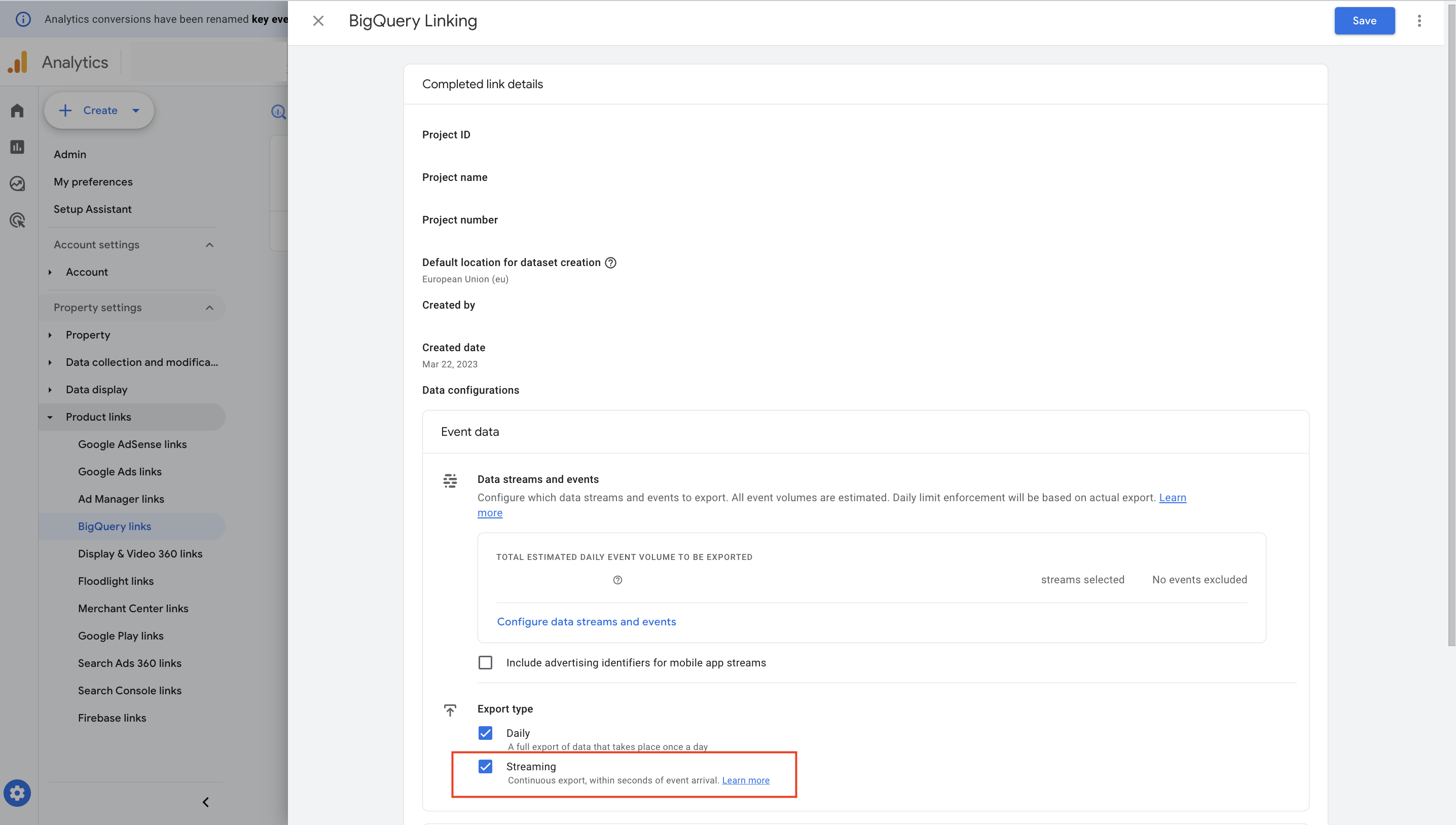
BigQuery GA4 export settings
App Instance ID is being collected to column user_pseudo_id in BigQuery export.
Steps:
- Copy payload from Analytics Debugger for Apps
- Find your identifier in the payload
- If you were using a proxy to find App Instance ID from Method #2, turn off the proxy now
- Open Google Cloud Platform then Google BigQuery then find your dataset then Streaming export (_intraday tables)
- Replace values and run the SQL query below
- Wohoo, you can see all collected hits from your iOS mobile app!
  DATETIME(TIMESTAMP_MICROS(event_timestamp), "UTC") AS event_datetime, -- UTC
  COALESCE(device.operating_system || " - ", "") || COALESCE(device.operating_system_version, "") AS OS,
  COALESCE(app_info.id || " - ", "") || COALESCE(app_info.version, "") AS APP_INFO,
  user_pseudo_id,
  user_id,
  event_name,
  ARRAY(
  SELECT
    KEY || " = " || COALESCE(VALUE.string_value, CAST(VALUE.int_value AS STRING), CAST(VALUE.double_value AS STRING))
  FROM
    UNNEST(event_params)) AS event_params,
  ARRAY(
  SELECT
    KEY || " = " || COALESCE(VALUE.string_value, CAST(VALUE.int_value AS STRING), CAST(VALUE.double_value AS STRING))
  FROM
    UNNEST(user_properties)) AS user_params,
  device.mobile_brand_name,
  device.mobile_model_name,
  geo.region,
  geo.city,
FROM
  `<YOUR PROJECT NAME>.analytics_<YOUR DATASET ID>.events_intraday_*`
WHERE
  TRUE
  AND _TABLE_SUFFIX = FORMAT_DATE("%Y%m%d", CURRENT_DATE()) -- Today's date
  -- AND user_pseudo_id = ""
  -- AND user_id = ""
ORDER BY
  event_datetime DESC
If you want to filter by another identifier, use this table to help identify the correct column:
| Identifier | BigQuery column |
|---|---|
| Client User ID | user_id |
| App Instance ID | user_pseudo_id |
Summary & personal experience
BigQuery is the only method I fully trust. DebugView is useful during development but unreliable, it misses events and sometimes shows them late. Analytics Debugger is somewhere in between, but it's limited to GA4 and a handful of tools.
Practical tip: use a dedicated test device. If you test on your personal phone, your own data ends up in the dataset.
My usual approach: use DebugView and Analytics Debugger to catch obvious issues quickly, then verify everything in BigQuery before you approve the implementation.