How to test your iOS app tracking with Flashlight: setup and reading the hits
Flashlight is a free mitmproxy addon that shows every tracking hit your iOS app sends. Set up the proxy and the certificate, then read Firebase, server-side GTM and Adjust hits parameter by parameter.
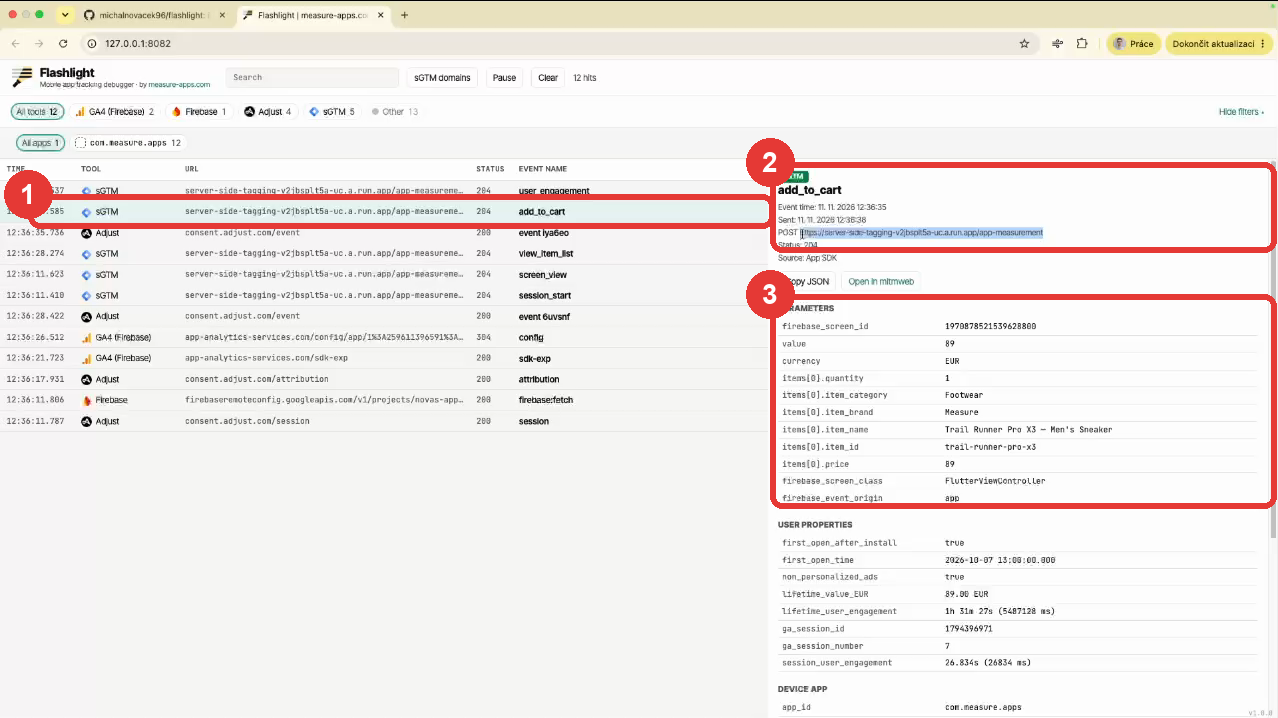
On the web you open the Network tab and see every hit. A native app has no Network tab. Firebase DebugView and the Adjust testing console show what arrived, late and filtered. They do not show what the app actually sent.
Flashlight closes that gap. It is a free mitmproxy addon I built for my own client work. Your iPhone sends its traffic through a proxy on your Mac, and Flashlight shows every tracking hit in one table: Firebase/GA4, server-side GTM, Adjust and others, one row per event, with all parameters.
Setup takes about 10 minutes. The certificate part you do once per iPhone. Flashlight works with iOS apps for now. This guide covers macOS. Windows install steps are in the GitHub README.
1. Install mitmproxy and the addon
Open the Flashlight repo on GitHub and scroll to Installation.
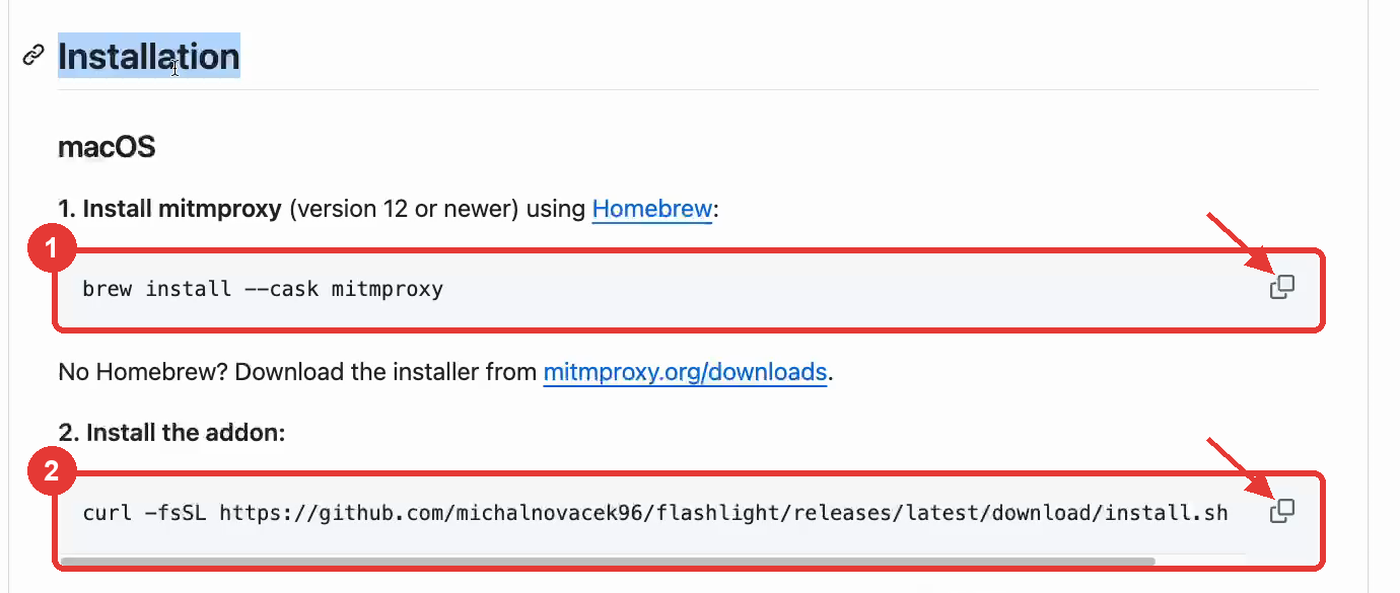
Copy both install commands from the GitHub README
Install mitmproxy (version 12 or newer):
brew install --cask mitmproxyThen install the addon:
curl -fsSL https://github.com/michalnovacek96/flashlight/releases/latest/download/install.sh | bashWhen the terminal prints Done. Installed Flashlight, you are ready.

The installer confirms where Flashlight opens
2. Start Flashlight
Run mitmweb in the terminal. Flashlight opens in your browser at http://127.0.0.1:8082. The first screen shows the exact IP address and port your iPhone needs. You do not have to look anything up.
3. Send the iPhone traffic through your Mac
The iPhone and the Mac have to be on the same Wi-Fi. This is the step people skip, and then nothing shows up.
On the iPhone:
- Open Settings → Wi-Fi.
- Tap the (i) next to your network.
- Scroll down to Configure Proxy and choose Manual.
- Copy Server and Port from the Flashlight screen.
- Tap Save.
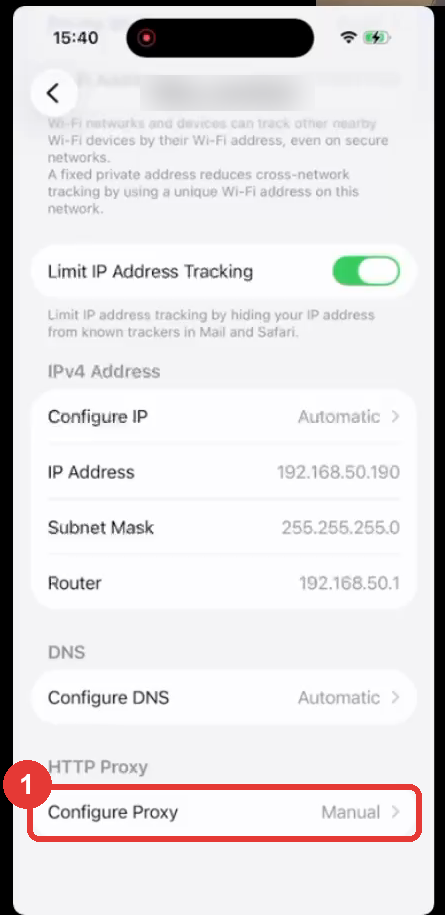
Configure Proxy sits at the bottom of the Wi-Fi details screen
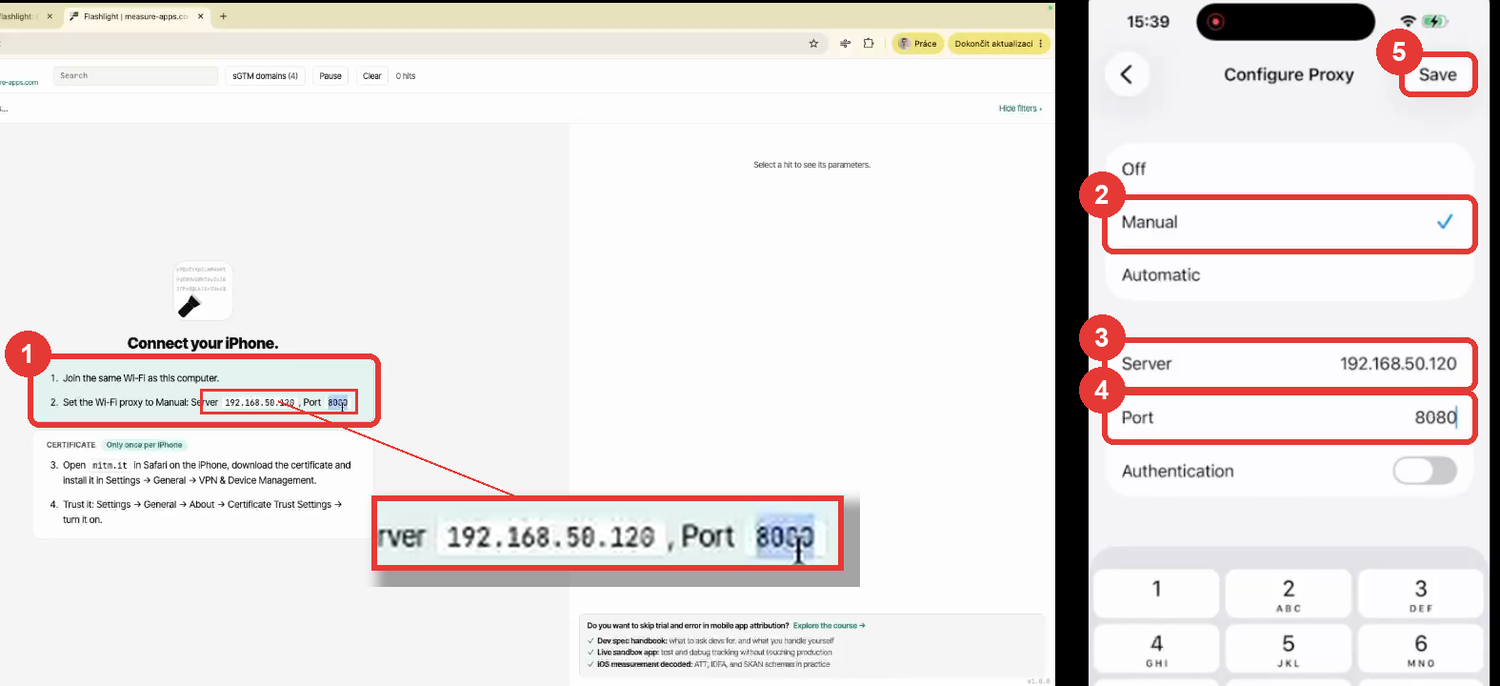
Copy the server and port from Flashlight into the iPhone proxy settings
Flashlight switches to iPhone connected with the first request. Connected does not mean you can read anything yet. Analytics hits go over HTTPS.
4. Install and trust the certificate (once per iPhone)
- Open mitm.it in Safari on the iPhone.
- Under iOS, tap Get mitmproxy-ca-cert.pem and Allow.
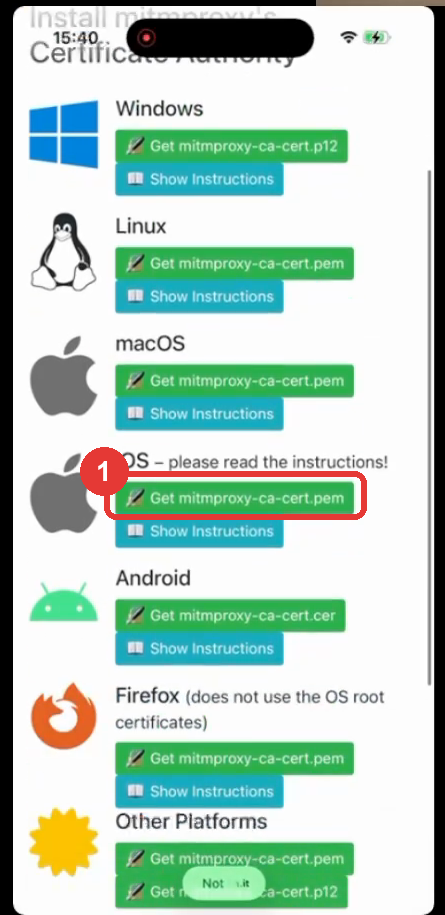
On mitm.it, download the iOS certificate
- Go to Settings. Tap Profile Downloaded at the top, then Install, enter your passcode and confirm Install twice.
Installed is not trusted. This is where most setups stop working.
- Go to Settings → General → About → Certificate Trust Settings.
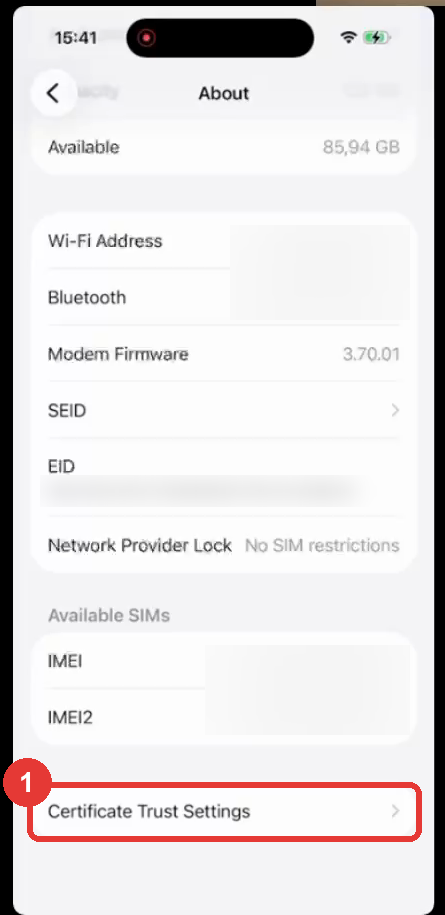
Certificate Trust Settings is at the bottom of the About screen
- Turn on mitmproxy and confirm with Continue.
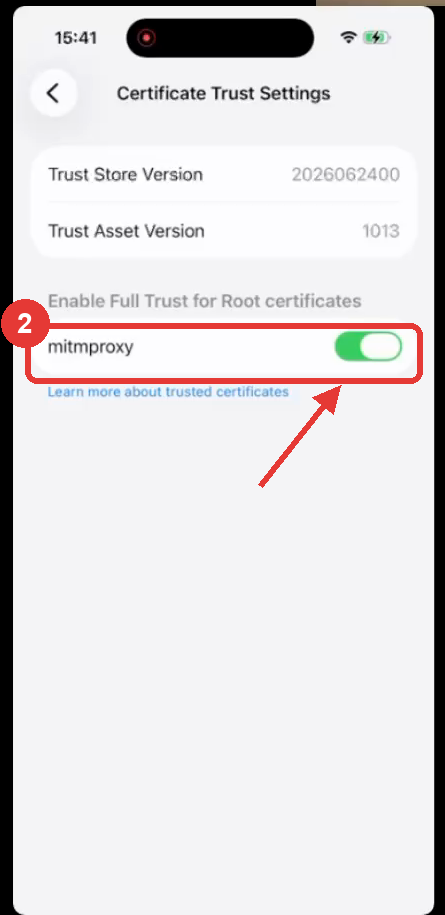
Turn on full trust for the mitmproxy certificate
Flashlight checks HTTPS on its own and shows Trusted. From now on it waits for hits.
5. Open the app and read the hits
I opened the Measure Apps demo app from my course. Firebase and Adjust hits appeared right after launch. Then I opened the test e-shop and added a product to the cart.
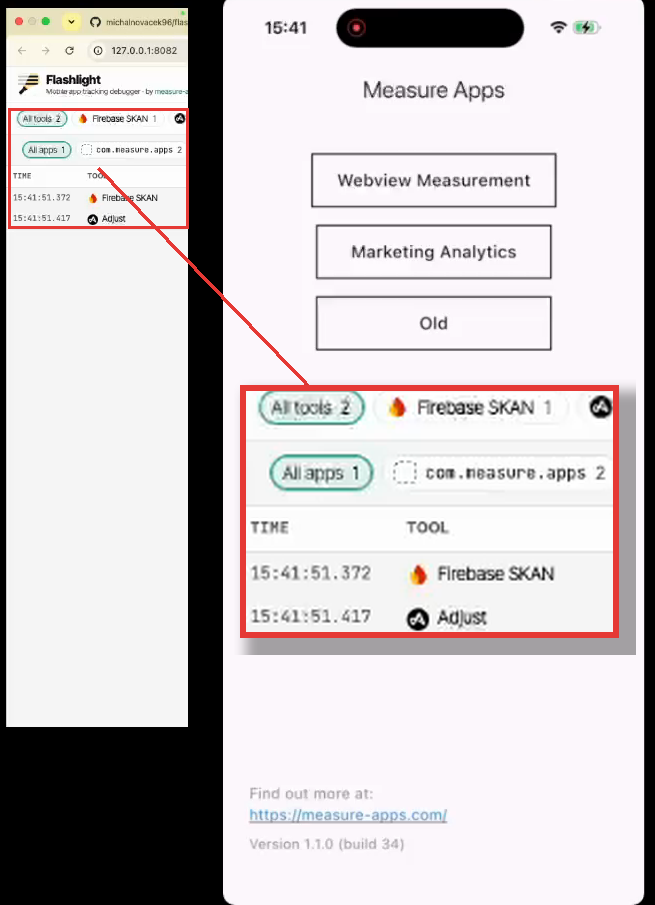
Firebase and Adjust hits appear in the same table right after launch
The add_to_cart event did not go to Google directly. It went through server-side GTM. Flashlight marks those hits as sGTM and decodes them the same way as GA4 hits.
The add_to_cart hit sent through server-side GTM
Click a row and the detail shows:
- URL: where the app sent the hit. Here it is the sGTM endpoint, not google-analytics.com. If a client says they run sGTM for the app, this is how you check it in 10 seconds.
- Parameters:
value,currency,items[0].item_id,items[0].priceand the rest. Compare them with the tracking spec line by line. - User properties: everything the SDK attaches to the user.
Scroll down to Device. You see the app version, OS version, device model and the advertising ID.
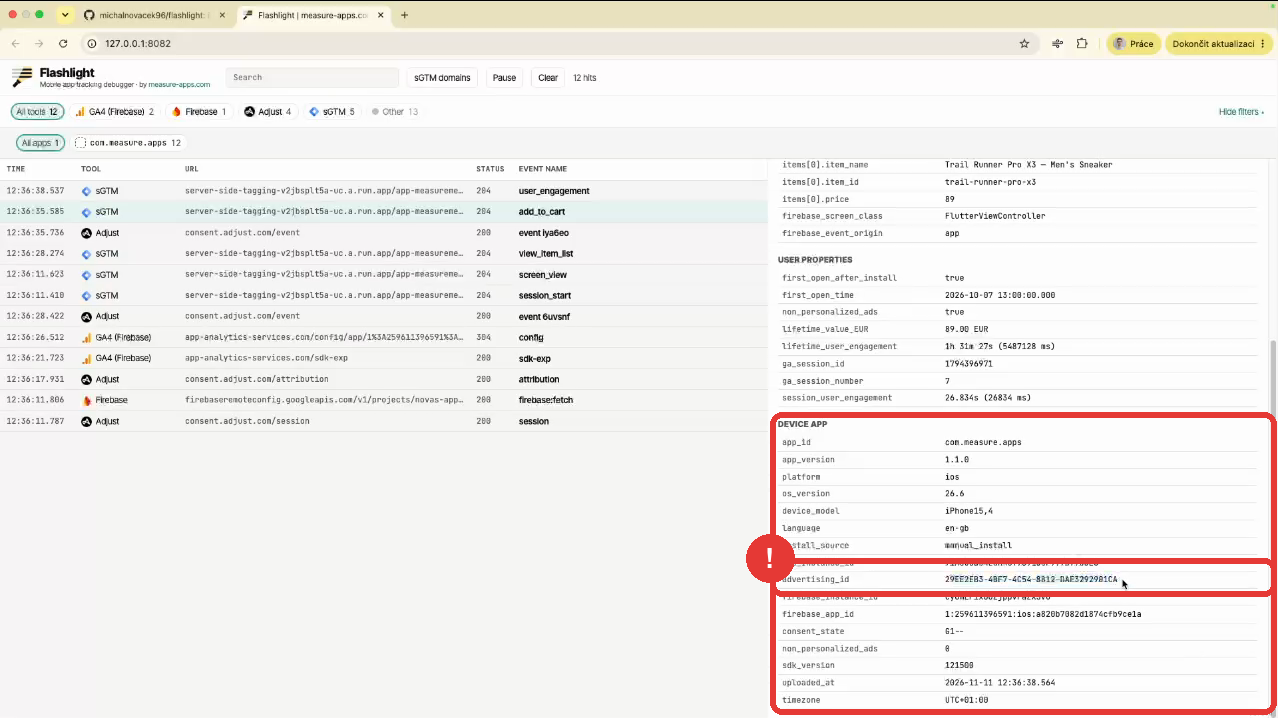
Device info and the advertising ID in the hit
Check the advertising ID against the ATT status. If the user denied tracking, it should be all zeros. If you see a real IDFA without consent, that is a finding, not a detail.
The same app has Adjust integrated. Adjust hits sit in the same table, so you see the Firebase event and the Adjust event for the same action next to each other. Parameter by parameter, no switching between consoles.
6. Search across all hits
A real app sends dozens of hits in a minute. Type the event name into Search and Flashlight filters the table across all tools.
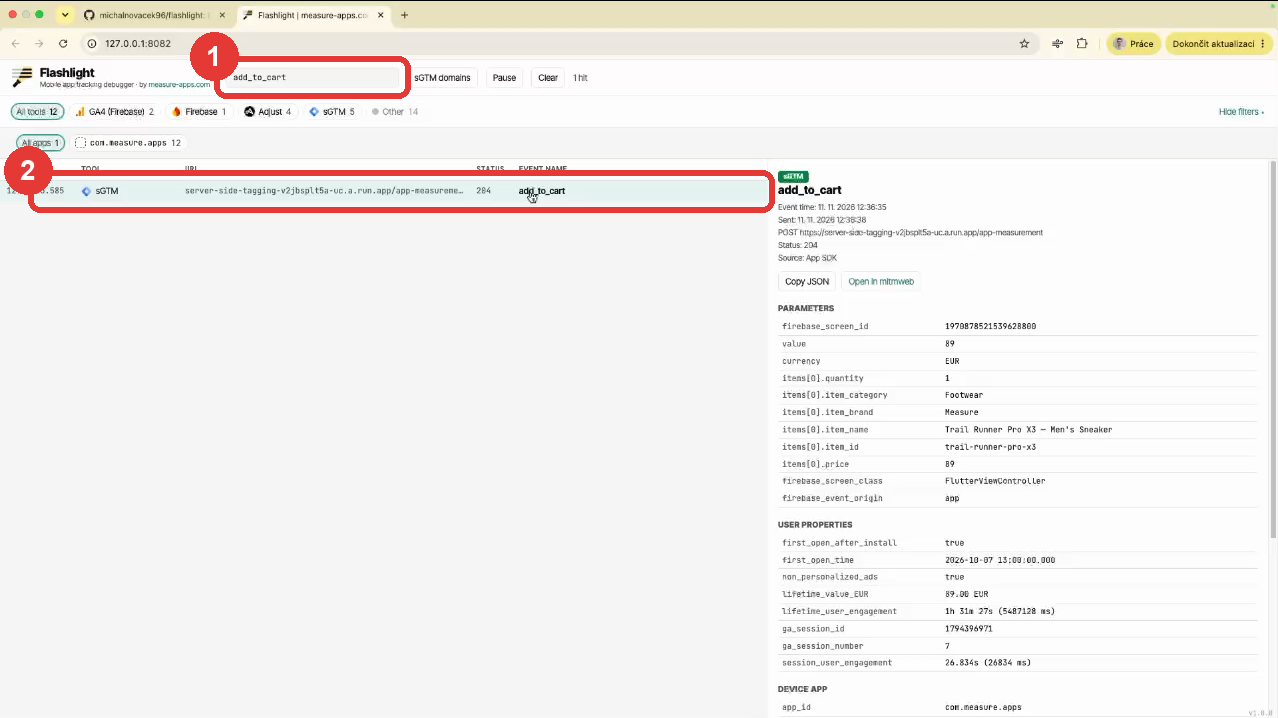
Search filters the hits to add_to_cart
Turn the proxy off when you are done
Set Configure Proxy back to Off. If you close mitmweb and leave the proxy on, the iPhone has no internet on that Wi-Fi. Everyone hits this once.
Keep a dedicated test iPhone if you can. I would not leave a trusted proxy certificate on my personal phone long term.
Why I check hits at the network level
I do not sign off a mobile implementation from DebugView. It shows what Firebase received and processed. The network shows what the app sent. A missing parameter, a wrong currency or an event fired twice: you see it in the hit before it disappears into a report.
Be strict here. If the hit does not match the spec, it goes back to the developers.
Want to practise on an app built for this? The Marketing Analytics for Mobile Apps course includes the test app from this video, with Firebase and Adjust, so you can see what correct hits look like.
Ready to go beyond testing and master mobile app marketing analytics end-to-end?
Inspecting network payloads is just the first step. If you want to design rock-solid tracking architectures, connect native apps to server-side GTM, and model clean marketing attribution in BigQuery, explore the full curriculum.
Explore the Mobile App Marketing Analytics CourseHands-on production setups for Firebase, GA4, MMP AppsFlyer, Adjust, and SKAdNetwork 4.0